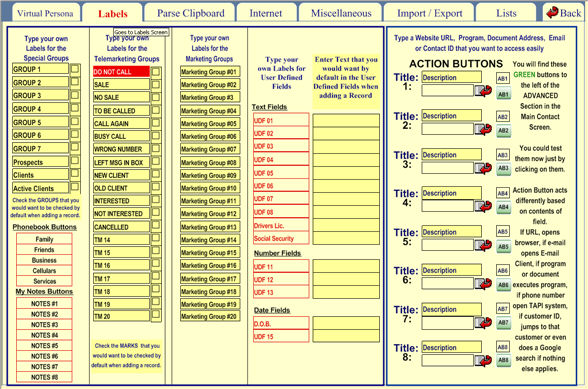
This is a very important tab where you will define your field labels.
Field labels will represent within the program those pieces of information which are of interest to you.
Under "Type your own Labels for the Special Group",
you can enter criteria which you would like to filter in the future. For
instance, if you wish to one day filter by "Pending TO-DO",
type in  in one of the black boxes.
The black labels are ideal to control steps in a process. For example if a particular task requires 5 steps you might want to label them appropriately and then tag the steps that are pending.
Filtering is a useful way to remove excess data which you don't want to see at the moment. You do not have to fill out the names for filters just yet if you don't want to.
Simply return
to this menu/tab in the future to add filter elements.
Under "Type your own Labels for the
User Defined fields", you have 2 columns. User Defined fields
contain criteria which are of interest to you personally.
While the program already accounts for standard fields (such as entry for names, addresses, telephones, e-mails, credit card numbers, etc.), you can define your own fields. You might consider "User Name", "Affiliate Number", and "Date of Affiliation" valuable fields (criteria) to work with.
On this User Defined field tab, you have 2 columns.
On the first column, you have your Text fields, which could include a field such as "User Name".
In the second column, you enter a value that you want by default when creating a record.
All of these fields can also be sorted and filtered from within the program. "Finds" can be performed on these fields.
Note: User Defined fields are only shown when in Advanced mode. To choose Advanced mode, click on "Advanced" at the top right of the Contacts section.
When you change the labels all records will be change except for the ones that you had changed individually. This is a very powerful feature since you can use more effectively the available fields.
Also, enter in this section, the default label for the Public Relations Groups and Telemarketing Groups.
By the way,
have unlimited fields when you use the "Free
Forms" 
Also, this tab lets you input up to 8 Action Buttons that you would like on-hand while within the program that you would like to run from the click of a button.
You will see
these action buttons in many places throughout the program. It acts differently
based on the information on the field at its left. If the field contains
a URL, it will open your default Browser, if the field contains an email
it will open your email client, if a program or document, it will run
the program or open the document with the correct application, if
contains a phone number it will open the TAPI system if installed in
your computer, if it contains a Customer ID then it will jump to that
customer and if nothing else it will try to do a Goggle Search. Think
of the possibilities.
You can personalize the labels of these buttons with three letters of your choice.
From within
the program, you will see these same buttons ( ) .
) .
Clicking on them will launch whatever you set on this tab.
Also, you can enter the labels for the 5 Sortcut Group Phonebook.