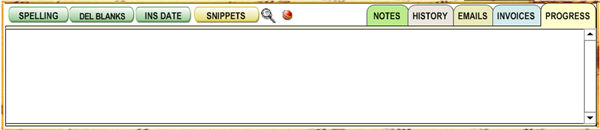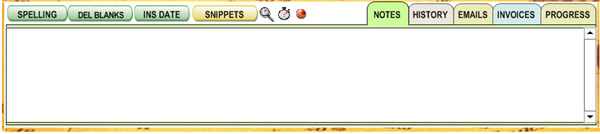
The Notes field is a place to keep any kind of notes about your client.
Also, various messages appear here when actions are logged (such as sending an e-mail to the client, etc.).
Each client
has a separate Notes file. You can check spelling by clicking  , or insert the current date and time by clicking
  or "CONTROL-".
Click on  to delete empty lines from the text in the Notes fields.
Click on  to insert usually a short phrase into the Notes field.
Click on the
magnifier icon  to open your note log on a bigger screen.
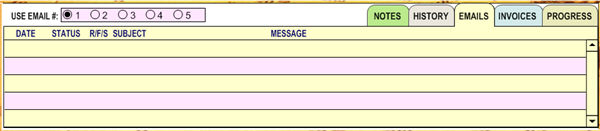
Click on  Tab to see related Emails for the Contact. If this contact
owns several emails, then you can isolate related emails by selecting
Tab to see related Emails for the Contact. If this contact
owns several emails, then you can isolate related emails by selecting
 . Emails must be separated by a semicolon for this to
work. Also you should know that not only received emails will be shown
but also emails sent to this email . There is a difference when you click
on the
. Emails must be separated by a semicolon for this to
work. Also you should know that not only received emails will be shown
but also emails sent to this email . There is a difference when you click
on the  in the top toolbar in Expert Mode or in the Communications
(COMM) Section of AMP . In this case all emails sent or received from
this contact will be shown plus
emails that has been linked to this contact.
in the top toolbar in Expert Mode or in the Communications
(COMM) Section of AMP . In this case all emails sent or received from
this contact will be shown plus
emails that has been linked to this contact.
You can read
emails by clicking inside the message fields or go to that email for further
processing by clickin the  button.
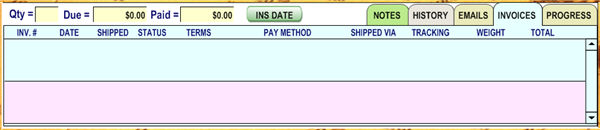
Click on  Tab to see related invoices for this Contact
Click on  Tab to see the Progress Tab. This field has a Merge button
in the Templates Manager so you can email or print a Status Report to
your clients in one click
Tab to see the Progress Tab. This field has a Merge button
in the Templates Manager so you can email or print a Status Report to
your clients in one click