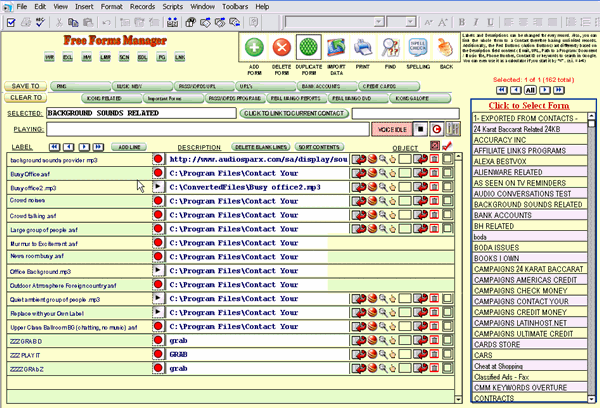
The Free Forms section lets you easily create collections of any kind of information.
First, you must decide on the "category" (the form) of the collection. For instance, you may choose a form for passwords, e-mails, domain names, credit cards, websites, ftp information, cars, things to-do, or any other collection you may be interested in.
Word documents, Excel files, PDF files, pictures and even video lists can be inserted or hold in the Free Forms sections
Once you decide
what the collection will be about, click  at the top.
Then, name the collection next to "SELECTED: ".
Below the title are the fields for the collection. Using "Passwords" as a possible title, under "LABEL", you may type the names of things that require passwords, and under "DESCRIPTION", type the password.
Or, you may choose the title of your collection to be "Pending Customers", and the field title to be the customers' names, and the Description to be "Very interested in our services" or "Will call us back Monday", or whatever.
To insert Pictures, Videos or other object click on the OBJECT field and then Right-Click on the next screen for more options.
It is better to only LINK to object to save space in the database and for optimal speed.
To use Videos you need to install Quicktime player in your computer which you can obtain for free at http://www.apple.com/quicktime/
Use the navigation interface at the top to switch between multiple forms, or simply click on the name of the collection off to the right.
When you need
to find anything just click on  and type a word in the field
The word or phrase will be looked in each and every field in all records.
and type a word in the field
The word or phrase will be looked in each and every field in all records.
Also when
you click the red icon  to the right of the description field
it will act differently based on the contents of the field, if you have
an URL it will open the browser, with an email it will open the email
system with a full path to a program or document it will open the program
and with a phone number it will try to dial it (but it will ask for permission
first) .
to the right of the description field
it will act differently based on the contents of the field, if you have
an URL it will open the browser, with an email it will open the email
system with a full path to a program or document it will open the program
and with a phone number it will try to dial it (but it will ask for permission
first) .
You can also link a form to a customer, simply click on the LINK TO CONTACT field and select the customer that you want to link to this particular form. Then, every time that you are positioned on the customer in the Main Screen and go to this section you will be position on this form automatically.