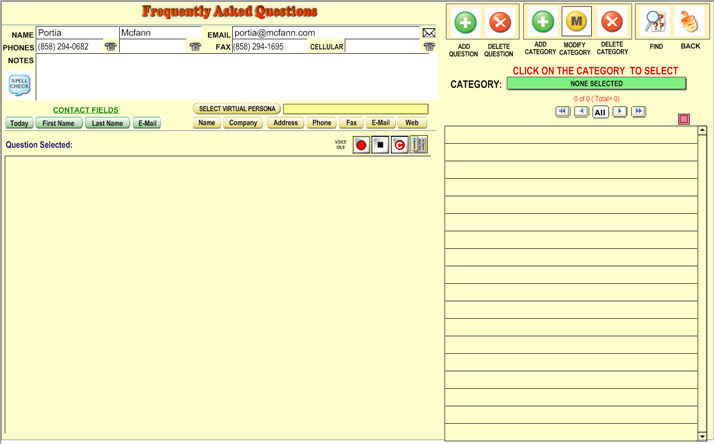
To access
the FAQ System, click on  button on the top navigation
bar. The FAQ screen lets you address (F)requently
(A)sked (Q)uestions
about your company/program.
button on the top navigation
bar. The FAQ screen lets you address (F)requently
(A)sked (Q)uestions
about your company/program.
This is convenient when speaking to a client over the phone or writing to him through e-mail.
To add an
FAQ, click  . You must create a new category or choose an
existing one for the FAQ.
. You must create a new category or choose an
existing one for the FAQ.
The subject can be "Benefits" or "Our Website". Then, type in the question next to "Question".
To type the answer to this question, click on the large area to the left. After typing your answer, click on a blank space on the screen (such as the area between the Question column and your answer blank) and your question will be added to the list of F.A.Q.'s.
The client whose information is currently being viewed is displayed at the top for reference.
To delete
a question, simply highlight the name and click  . To remove
a "subject", delete the questions that fall under the subject
and the subject will be removed automatically.
. To remove
a "subject", delete the questions that fall under the subject
and the subject will be removed automatically.
To transfer
a question from one category to another, click the name of the question,
click  , and type in a different Category
next to "Category".
, and type in a different Category
next to "Category".
To create
a new Question, click on the  button.