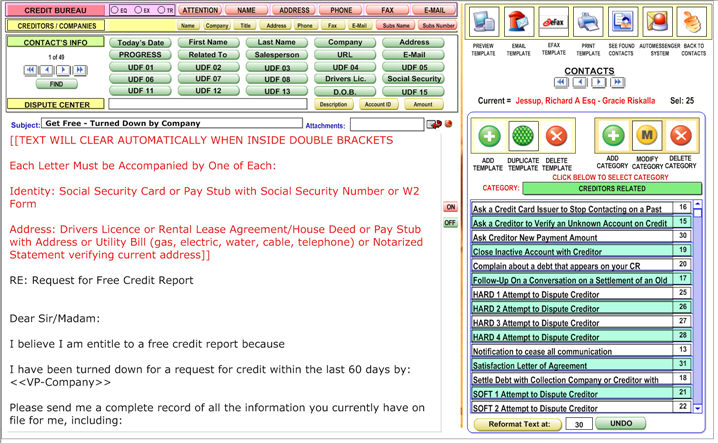
The Template system allows you to easily create letters and communication texts without having to retype your clients' personal information or other information. It merges your customers fields and your own information and third parties easily.
To add a new template, select the client's record that corresponds to the customer you wish to contact.
Click on  at the top navigation bar to access the template system,
and click
at the top navigation bar to access the template system,
and click  on the right-hand navigation bar to create a
new category and
a corresponding template will be created automatically. You will be directed
to the "SUBJECT" line, where you should type the subject of
your template, such as "New Member Benefits".
on the right-hand navigation bar to create a
new category and
a corresponding template will be created automatically. You will be directed
to the "SUBJECT" line, where you should type the subject of
your template, such as "New Member Benefits".
You can then begin to type your template-letter below. Notice that the Pre-Defined and User Defined fields are at the top as buttons, as well as fields for your information.
This means:
instead of typing in the name of your customer after writing "Dear
" in your body message, you can type "Dear " and click
on  . This will save you the step of writing out various client
information for this client and any others you wish to send this e-mail
to.
. This will save you the step of writing out various client
information for this client and any others you wish to send this e-mail
to.
You can write
your e-mail, and perhaps end it with "Sincerely, " and click
 to merge your own information or third party information.
As a matter of fact, this feature alone is invaluable in real life since it lets you merge two different database at the same time in the same document. Think about the possibilities.
After this
is done, you can click  to see if everything is as it should
be. If everything is correct, you can click
to see if everything is as it should
be. If everything is correct, you can click 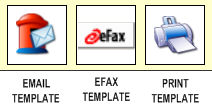 .
.
If the email button is selected, you will send the client an e-mail. If the print button is selected, you will print a letter to this client and also you can EFAX the template. You can select if you want a letter with letterhead or without it.
When you click one of those buttons you will have the option of selecting the current contact or the group of contacts currently selected.
After sending a template, a log of this will be placed in your notes saying you sent a template, along with the time sent.
Also, from
the Templates Manager you can access the AutoMessenger System by clicking
 In
this section you
can assign group of templates with a predetermine schedule to one Contact
or Group of Contacts with one click.
In
this section you
can assign group of templates with a predetermine schedule to one Contact
or Group of Contacts with one click.