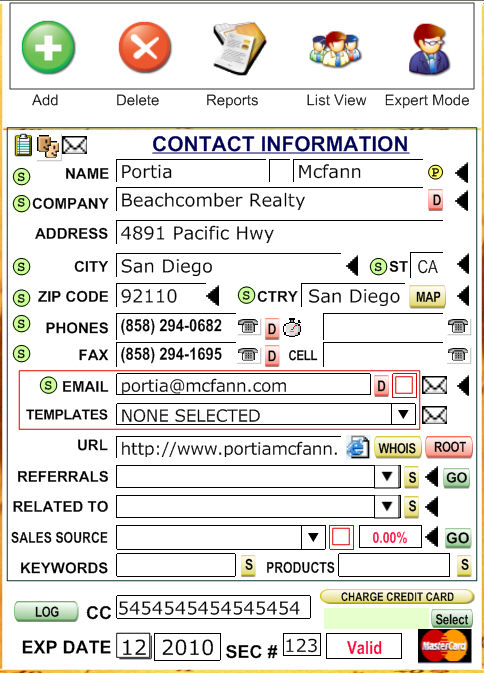
Under the Contact Information title, you will enter your clients' information. This can include their name, company, address, phones, e-mail, etc.
To the right of most fields under Contact Information, you will see some kind of icon. See the icons section for more information on icons.
When you click on the
 button
to the right of the Referrals or Sales From fields the system will try
to go to that record based on the name in the field.
button
to the right of the Referrals or Sales From fields the system will try
to go to that record based on the name in the field.
 with an S. This means that you can click
that dot to sort the records shown by that field. For example if you click
on the company
with an S. This means that you can click
that dot to sort the records shown by that field. For example if you click
on the company  dot,
all records shown will be sorted by company. You can choose from Name,
Company, City, State, Zip Code, Country and Email.
dot,
all records shown will be sorted by company. You can choose from Name,
Company, City, State, Zip Code, Country and Email.
 icon (to the
right of Phone 1) to know the local time based on the Area Code
icon (to the
right of Phone 1) to know the local time based on the Area Code
 icon (to the
right of some fields) to select Duplicates on that field.
icon (to the
right of some fields) to select Duplicates on that field.
 is very
important, when you click on the field it will open a list of all records
so you can select one. Then, if this selection (sales person) is
agreed to get a commission when the contact on screen (client) makes a
purchase then enter the commission percentage in the red field to the
right.
is very
important, when you click on the field it will open a list of all records
so you can select one. Then, if this selection (sales person) is
agreed to get a commission when the contact on screen (client) makes a
purchase then enter the commission percentage in the red field to the
right.
 field is also important
since any word here can be access directly with the Quick Find
field is also important
since any word here can be access directly with the Quick Find
 button and enter the word to look for and press enter.
All records containing this word will be filtered. By
the way, the Quick Find looks
into the Name, Company, Phones, Email, URL, Related to, Referrals, Keywords
and Products all in one pass.
button and enter the word to look for and press enter.
All records containing this word will be filtered. By
the way, the Quick Find looks
into the Name, Company, Phones, Email, URL, Related to, Referrals, Keywords
and Products all in one pass.
 field is also special. When
you invoice a product and change the Invoice status from "Pending"
to "Invoiced" or "Paid" the products code bought from
the customer will be copied here and records can be filtered out as with
the Keywords field. NOTICE: the prefix "P-"
will be added to the product code but you can look for records containing
a product either by typing the Product Code or "P-XXXX" where
XXXX is the Product Code. The second format is more accurate because it
won't be confused for a phone number etc.
field is also special. When
you invoice a product and change the Invoice status from "Pending"
to "Invoiced" or "Paid" the products code bought from
the customer will be copied here and records can be filtered out as with
the Keywords field. NOTICE: the prefix "P-"
will be added to the product code but you can look for records containing
a product either by typing the Product Code or "P-XXXX" where
XXXX is the Product Code. The second format is more accurate because it
won't be confused for a phone number etc.
 buttons at the bottom
left.
buttons at the bottom
left.  and will open a screen where you can match the fields
from your Merchant Gateway to the fields in the Contact Manager in such
way that you would be able to charge Credit Cards directly from the software
by clicking on the
and will open a screen where you can match the fields
from your Merchant Gateway to the fields in the Contact Manager in such
way that you would be able to charge Credit Cards directly from the software
by clicking on the  button . You can charge credit cards
either from the contact screen or from the Invoice Screen or even from
the Merchant Gateway screen. You need to obtain the name of those fields
from your Internet Gateway Merchant provider. If
you do not have a Merchant Account you can sign for the one we recommend
(99% approval rate) at http://www.voxvox.com
button . You can charge credit cards
either from the contact screen or from the Invoice Screen or even from
the Merchant Gateway screen. You need to obtain the name of those fields
from your Internet Gateway Merchant provider. If
you do not have a Merchant Account you can sign for the one we recommend
(99% approval rate) at http://www.voxvox.com