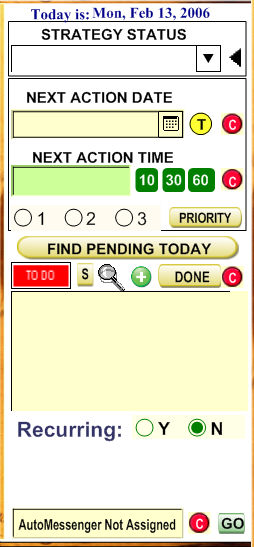
The first field is the Strategy Status. Use this field to see, ata a glance, the status of your action as a whole. For example, if you are selling something, possible status are, Soft Lead, Qualified Lead, Presentation, Negotiation, Fulfillment, etc.
To paste
a date into the Next Action field, simply click on the little calendar
 and a calendar will pop up. Just select the desired date.
Here are what the icons do upon clicking them:
 (today)
- Returns Today's date. Click it with SHIFT and it will return tomorrow.
Click it with CONTROL and it will return Next Week. Click it with SHIFT+CONTROL
and it will return Next Month.
(today)
- Returns Today's date. Click it with SHIFT and it will return tomorrow.
Click it with CONTROL and it will return Next Week. Click it with SHIFT+CONTROL
and it will return Next Month. - Checks to see if there
is anything to do today and filters the database by those records.
- Checks to see if there
is anything to do today and filters the database by those records. You can select the Priority of this task or project. IMPORTANT: if you click the `
 button records with Priority
One, with
Time and Due Date will be selected.
button records with Priority
One, with
Time and Due Date will be selected.  - Clears
the corresponding field.
- Clears
the corresponding field. - Set the Next Action
Time to 10 Minutes from current time. Click with SHIFT for incremental
time.
- Set the Next Action
Time to 10 Minutes from current time. Click with SHIFT for incremental
time. - Set the Next Action
Time to 30 Minutes from current time. Click with SHIFT for incremental
time.
- Set the Next Action
Time to 30 Minutes from current time. Click with SHIFT for incremental
time. - Set the Next Action
Time to 60 Minutes from current time. Click with SHIFT for incremental
time.
- Set the Next Action
Time to 60 Minutes from current time. Click with SHIFT for incremental
time.
To
set an action, type something into the "MEMO" field 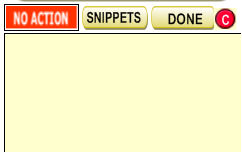 (the field below of the button, and choose a date and a time. When the date
and time comes, the
(the field below of the button, and choose a date and a time. When the date
and time comes, the  sign will change to
  .
.
If
the action you chose happens on a regular basis (is recurrent), click
on Recurring 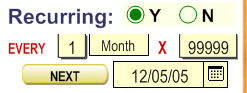 to choose the date and time for the next
recursion. To remove an action, clear the date and time by clicking .
to choose the date and time for the next
recursion. To remove an action, clear the date and time by clicking .
IMPORTANT:
By using the Snippets button  you can be consistent in
your entries and ,most importantly, enter different tasks to be performed
in order and reschedule automatically
and then, log them as complete one by one in the Notes field by clicking
the button.
you can be consistent in
your entries and ,most importantly, enter different tasks to be performed
in order and reschedule automatically
and then, log them as complete one by one in the Notes field by clicking
the button.

You can enter a full set of actions with their corresponding schedule in one click.
For example: Let's say that you enter, my means of the Snippets, the following list of tasks in the Next Action Field (maybe in one click) .
SENT WELCOME EMAIL
+2 MAKE FOLLOW UP CALL
+30 SEND MONTHLY REMINDER
Now, you assign a DATE and maybe a time to this Next Action by clicking on the Calendar for the first task (send welcome email)
Now,
let's say that, at the right date, you send the Welcome Email, to erase
and log at the same time this complete task simply click the button and the task will be deleted automatically and log
its time and date of completion in the History Field.
Now,
the Next Action Date will be reset automatically
two days later than today's date (+2)
to the
date of Next Task (Make Follow Up Call), when, after two days, you make
that action (Make Follow up Call) and click the next action (SEND MONTHLY REMINDER) will be reschedule
automatically for the next month (+30)and
the process will be repeated again..
So, by entering the number of days between tasks you can automate and set IN ONE CLICK a full marketing campaign or other process.
You enter set of actions in one click by creating those set as a Snippet.